
Getting Started
Creating Your Account
Download the app
Prospekt is free on the App Store, iOS only.
Confirm age before anything else
The very first thing you'll see is a birthdate picker — before any email or password field. Enter the birthdate of the person creating the account: parents, use your own. You'll add your athlete's birthdate a few screens later. Under 13, the app stops there and nothing is saved. Ages 13–17 see one extra privacy screen, then move on to creating credentials.
Sign up with your own email and password
That's just your login — it isn't the player's information.
Enter your athlete's info, not your own
The "Enter the player's name" screen wants your player's information: their name and sport, how they bat and throw, and their own birthdate on the Playing details screen (used for age-based guidance like pitch counts). If you're a teen signing yourself up, your birthdate is already filled in. That first profile is who actually gets tracked — you don't need a separate profile for yourself.
Check your email if asked
If email confirmation is required, you'll land on "Check Your Email" — tap the link it sends, or come back here and tap "I've Verified — Continue" once you have.
Claiming an Existing Profile
If a parent, coach, or someone else already created a Prospekt profile for you before you signed up, the app looks for a match right after signup and shows "Is this you?" with that player's name.
Tap "Yes, this is me"
This starts the claim.
Verify your email
A one-time code is sent to confirm you're a real, reachable account before the claim finishes — this protects a profile from being claimed by the wrong person. If the email on file isn't one you can reach, tap "Wrong email? Change it" to fix it in the same flow.
Once claimed, every game, stat, and report already tracked under that profile comes with it — nothing is lost or reset.
The First-Time Walkthrough
The moment your first profile is created, Prospekt opens a short guided tour on its own — nothing to go find.
- Welcome — a quick intro.
- A field guide over the real Game Setup screen — tap any field to see what it does and why it matters.
- A real practice at-bat — nothing attached to it, so you can get a feel for tapping location → pitch type → result before it counts for anything. "Try Again" repeats it as many times as you want.
- A few info slides on Games, Reports, and Profile, each with a small interactive demo.
Managing More Than One Player
A parent with two kids doesn't need two accounts. From Profile → My Players → Add a Player, add as many managed players as you need — each with their own sport, teams, stats, and reports.
Switch which player is active from the chip strip on Home, from Profile, or from the dropdown at the top of Game Setup — whichever one you switch to becomes the player every tab (Track, Games, Reports, Profile) is about, everywhere, until you switch again.
Home Tab
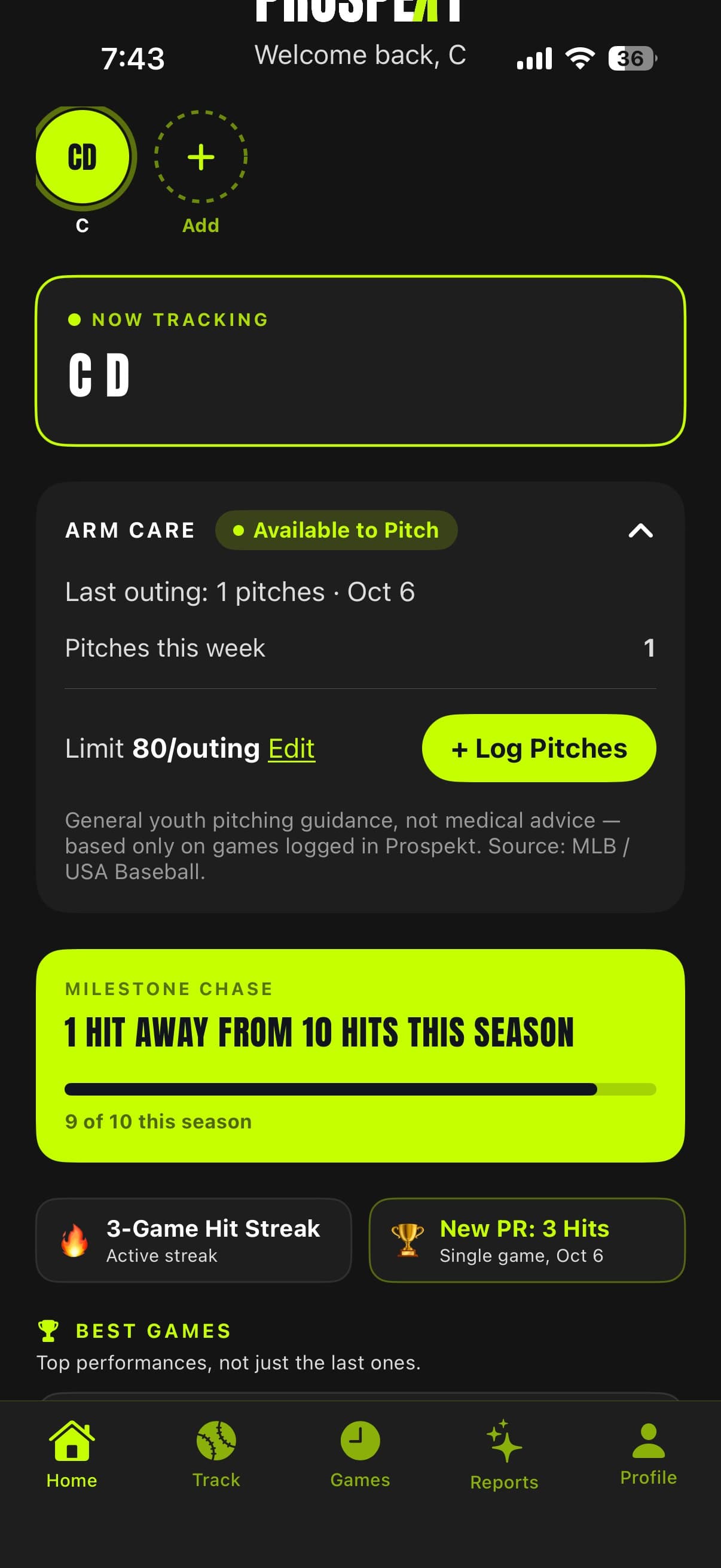
Arm Care
Shows whether your pitcher is available to pitch today or still resting, based on pitches logged in the app. "+ Log Pitches" lets you add pitches from a bullpen or a game you didn’t track live, so the rest-day math stays accurate.
Milestone Chase
The nearest round-number goal this season — hits, strikeouts, whichever is closer — with a progress bar toward it.
Streak & Personal Record
Your current active streak (on-base games, or strikeout outings for a pitcher) next to your best single-game performance this season.
Best Games
Your top performances ranked by how good they were — not just the most recent ones.
Switching Between Players
The chip strip at the top of Home lists every player you own or manage. Tap a name to make them the active player everywhere in the app. Tap the dashed "+ Add" chip to add another.
Trend Cards
Below Best Games, Trend cards compare your last 10 games to the 10 before that — Batting Avg, Strikeout Rate, and Quality Contact% for a batter; Strikeout Rate, Walk Rate, and Batting Avg Against for a pitcher. An arrow shows whether each one is trending up or down.
Track Tab — Game Setup
One continuous screen, shown here in three scrolled sections — numbers continue in order from top to bottom.
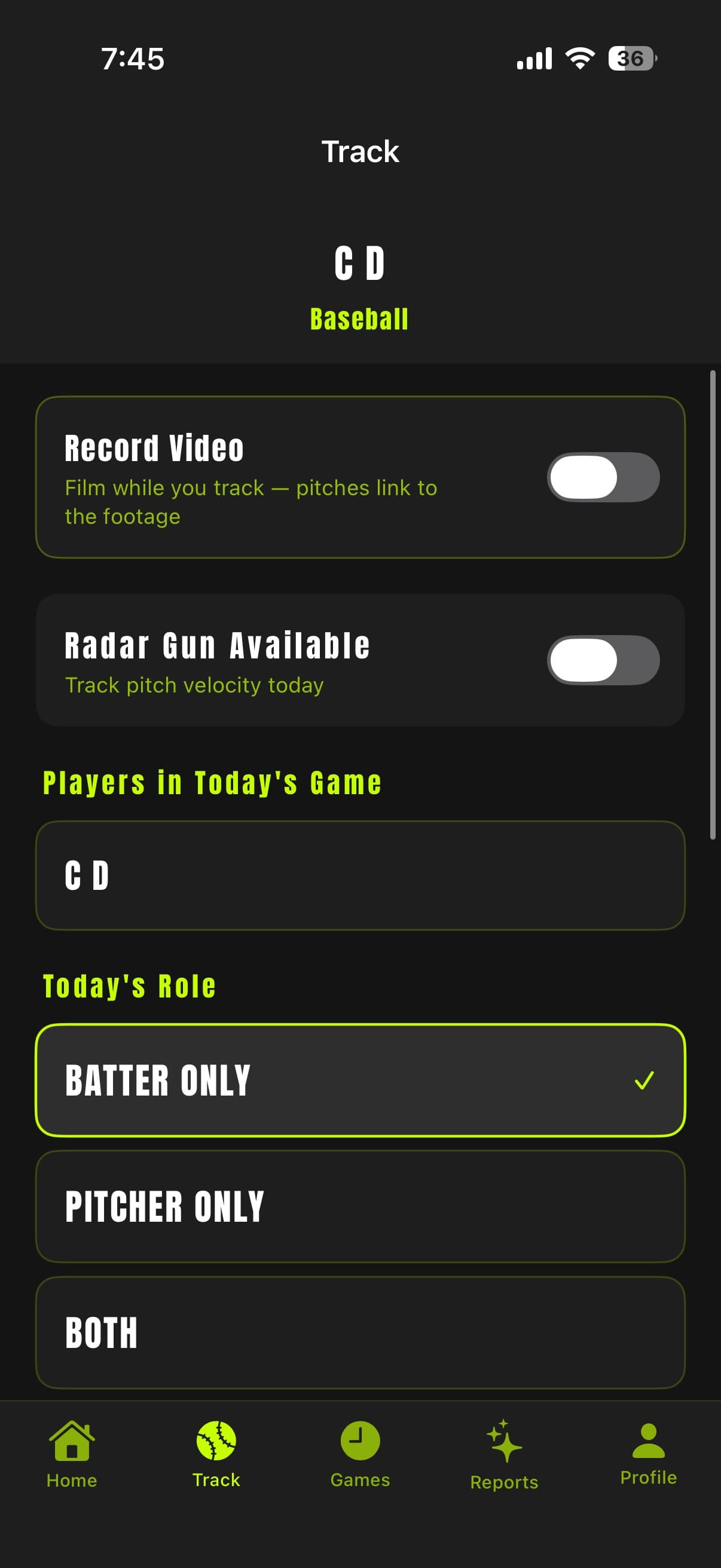
Record Video
Toggle on to film while you track — each pitch links straight to the matching moment in the video. Requires an active Player Pro subscription; everything else in the app is free.
Radar Gun Available
Toggle on if someone has a radar gun running today, so you can log real pitch velocities instead of an estimate.
Players in Today's Game
Who’s being tracked this game. Tap to check off more than one player if you’re tracking a multi-player lineup.
Today's Role
Batter Only, Pitcher Only, or Both — what this player is doing in today’s game.
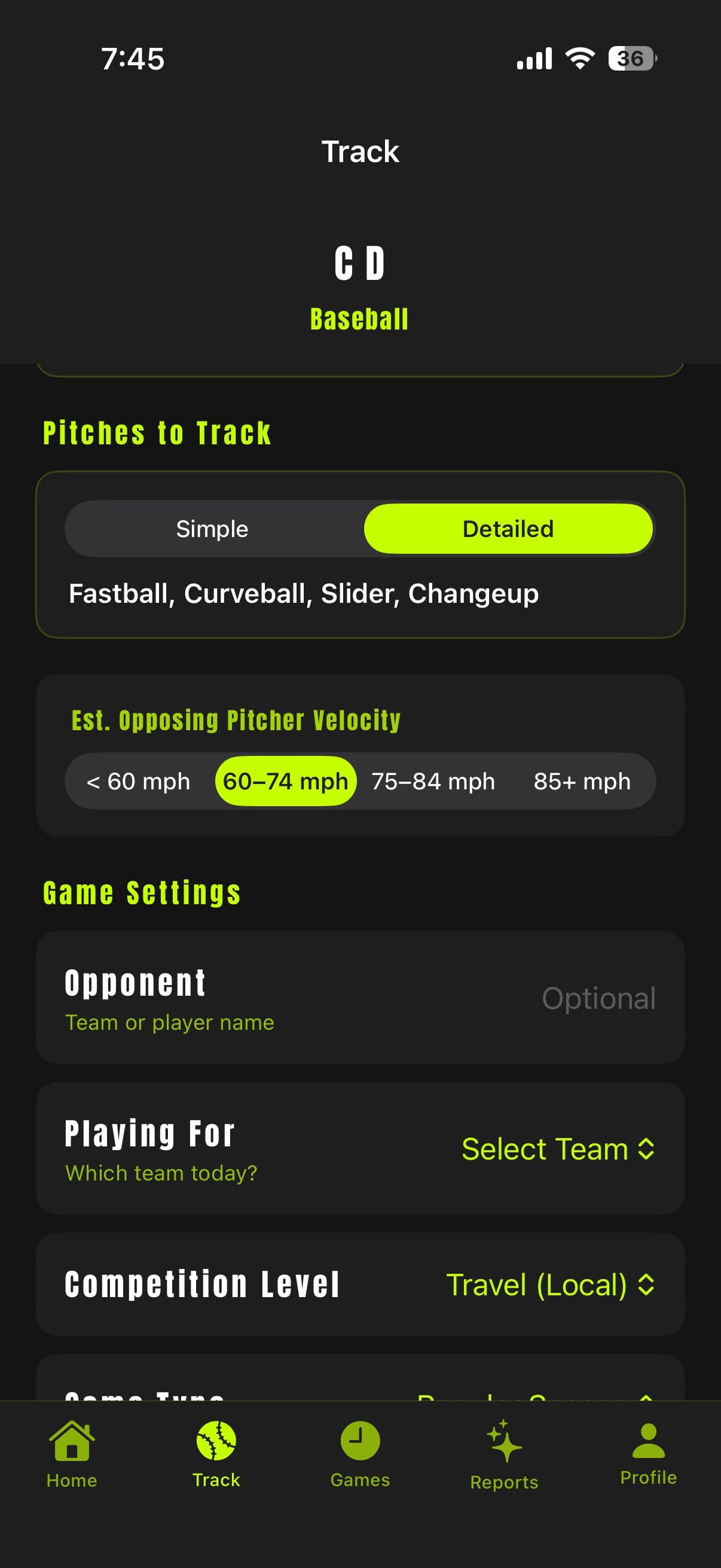
Pitches to Track
Simple (fastball/off-speed) or Detailed (the full pitch-type list) — which pitch types show up while tracking. If this player pitches, a Custom option also appears with a text box to add their own specific pitches.
Est. Opposing Pitcher Velocity
Only shown for a batter without a radar gun — a rough velocity band for context, since there’s no real number to log otherwise.
Opponent
Team or player name — optional, but it becomes a real filter on your Stats page later, so worth filling in.
Playing For
Which of your saved teams you’re playing for today. Teams are set up from the Profile tab, under each player.
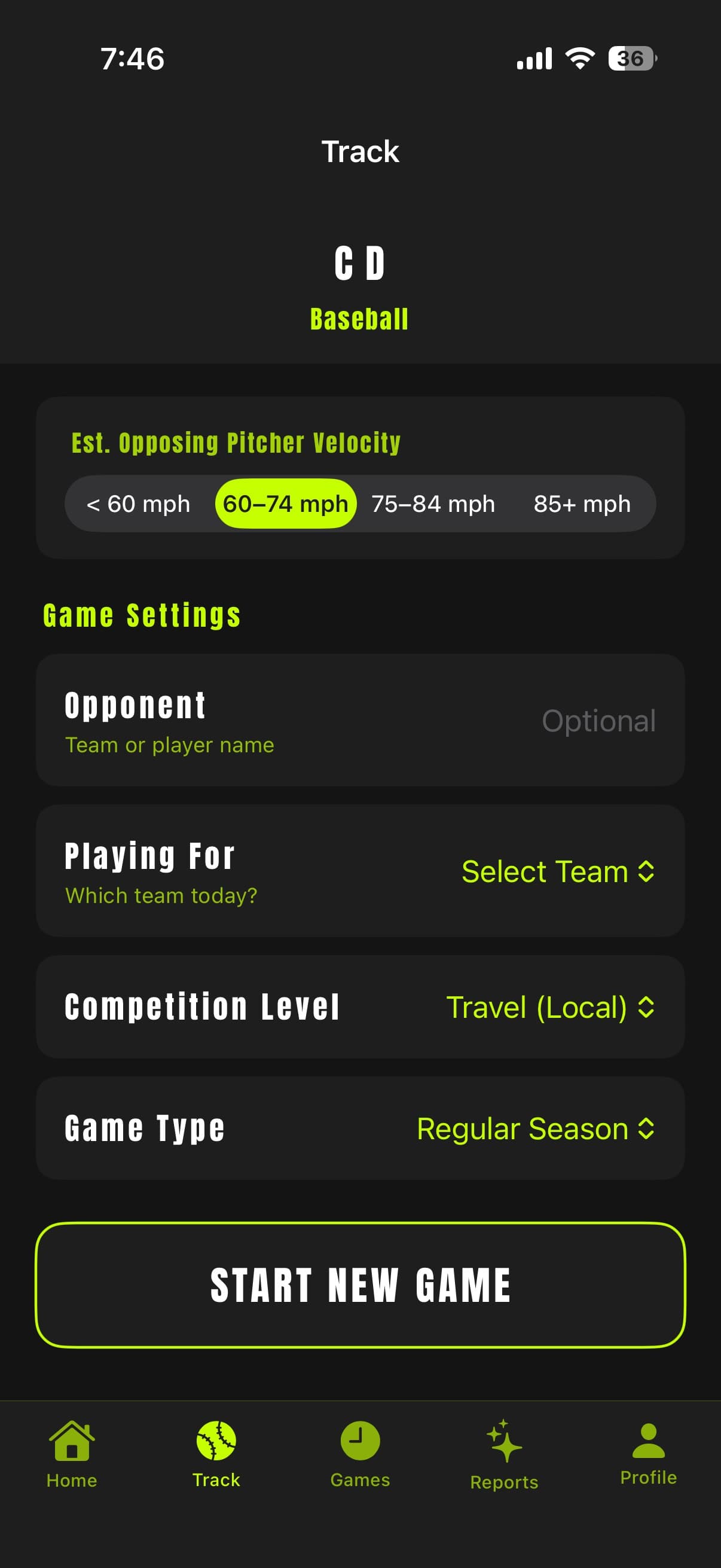
Competition Level
Rec, travel, showcase, and so on — another real filter on your Stats page later.
Game Type
Regular season, tournament, scrimmage, and the rest.
Start New Game
Tap when you’re ready — nothing above this is locked in until you do. From here you’re tracking live: tap the pitch location, then the pitch type, then the result.
Track Tab — Live Tracking
Reading the Count Bar
The bar at the top of the tracking screen always shows balls-strikes, outs, and the inning. If this player is pitching with a pitch limit set, it also shows a progress bar toward that limit, color-coded as you get close.
Recording a Pitch
Every pitch is three taps, always in the same order:
1. Location
Tap where the pitch crossed the plate on the strike-zone grid.
2. Pitch Type
Tag what was thrown — the list shown depends on what you picked under "Pitches to Track" at Game Setup.
3. Result
Ball, Strike — Looking or Swinging, Foul/Tip, Ball in Play, Hit By Pitch, or Intentional Walk.
Ball in Play
1. Place it
Tap where the ball was fielded on the field diagram.
2. Hit, Out, or Error
Pick what happened.
3. Hit type
Ground ball, line drive, fly ball, and the rest — asked for a Hit and an Error alike, since it's about how the ball was struck, not just the result.
4. Runs
If anyone scored on the play, log how many.
Ending an At-Bat Early (Runner Out)
For a defensive play that ends the half-inning while the batter is still mid-count — a runner thrown out on the bases, not anything the batter did — look for "Runner Out" wherever you are: at the very start of a pitch, or on the "Record this at-bat?" prompt before you've even made a recording decision.
The out counts, but nothing is charged to the batter — their turn resets cleanly, and if no pitches had been thrown yet, the next real batter picks up the same at-bat number.
Intentional Walk
One tap on the Ball/Strike screen — no need to actually throw four pitches to log it.
Fixing a Mistake
"Undo At-Bat" / "Edit Last At-Bat" reopens the result you just confirmed — its pitches and video stay intact, and you throw a fresh final pitch (or walk) to redo the call. This is the fix for an overturned umpire call, a mis-tapped outcome, or any wrong result after the fact.
Recording Video for an At-Bat
With Record Video on, you'll see "Record this at-bat?" before every at-bat: Start Recording, Skip — No Video (just this one), or Runner Out. "Edit Last At-Bat" is also here if the previous result needs fixing.
Pausing Video
The pause icon on a live recording is for real dead time — an injury timeout, a mound visit. Pitch entry is blocked while paused, so nothing gets logged against the wrong moment of video. Resume picks the same clip back up with no gap in the footage you review later.
Voice Notes
The mic icon lets you record a quick spoken note at any point — it's transcribed to text and attached to the game, visible later in that game's detail.
Zooming the Camera
Pinch on the live camera preview, 1x–6x.
Ending the Game
"End Game" is in the toolbar during live tracking. If the last at-bat's result was never confirmed, it's saved automatically on the way out — nothing you tracked gets silently dropped.
Track Tab — Multi-Player Mode
The Player Strip & Switch Button
A horizontal strip of player chips sits in the "Now Tracking" banner — tap any name to jump straight to that player. Tap the banner itself (or "SWITCH") to open the full switcher sheet.
The Switcher Sheet
Lists every player in today's lineup, in batting order, with badges for who's currently ACTIVE and who's UP NEXT. Tap any row to switch to them.
Each row also has its own jersey-number chip — tap it to set or edit that player's number for today's team, right from here, no need to leave the game.
Auto-Advance (Batter Only Mode)
In a Batter Only lineup, Prospekt automatically switches to the next batter the moment an at-bat ends, and pops the switcher sheet open with a "CONFIRM BATTER" button so you can quickly check it landed on the right person.
Fixing the Batter Who Just Finished
"Edit [Name]'s Last At-Bat" appears on the switcher sheet right after an auto-advance — it jumps straight to that batter's own Undo screen without losing your place in today's lineup.
Wrong Batter — Move At-Bat
Realized mid-at-bat you were tracking the wrong player? Switching to the right one offers "Wrong Batter — Move At-Bat" — it moves every pitch thrown so far (and any video already recording) onto the correct player, and leaves the player you were on with a genuinely clean, empty at-bat instead of a leftover mess.
Switching Mid-At-Bat with Video Recording
Switching away from a player who already has pitches thrown this at-bat (with video rolling) warns you first: anything already recorded stays with that at-bat; if you come back and finish it later, only the footage from after you returned is kept. Use "Wrong Batter — Move At-Bat" above instead if the real fix is "this should have been someone else the whole time."
Games Tab
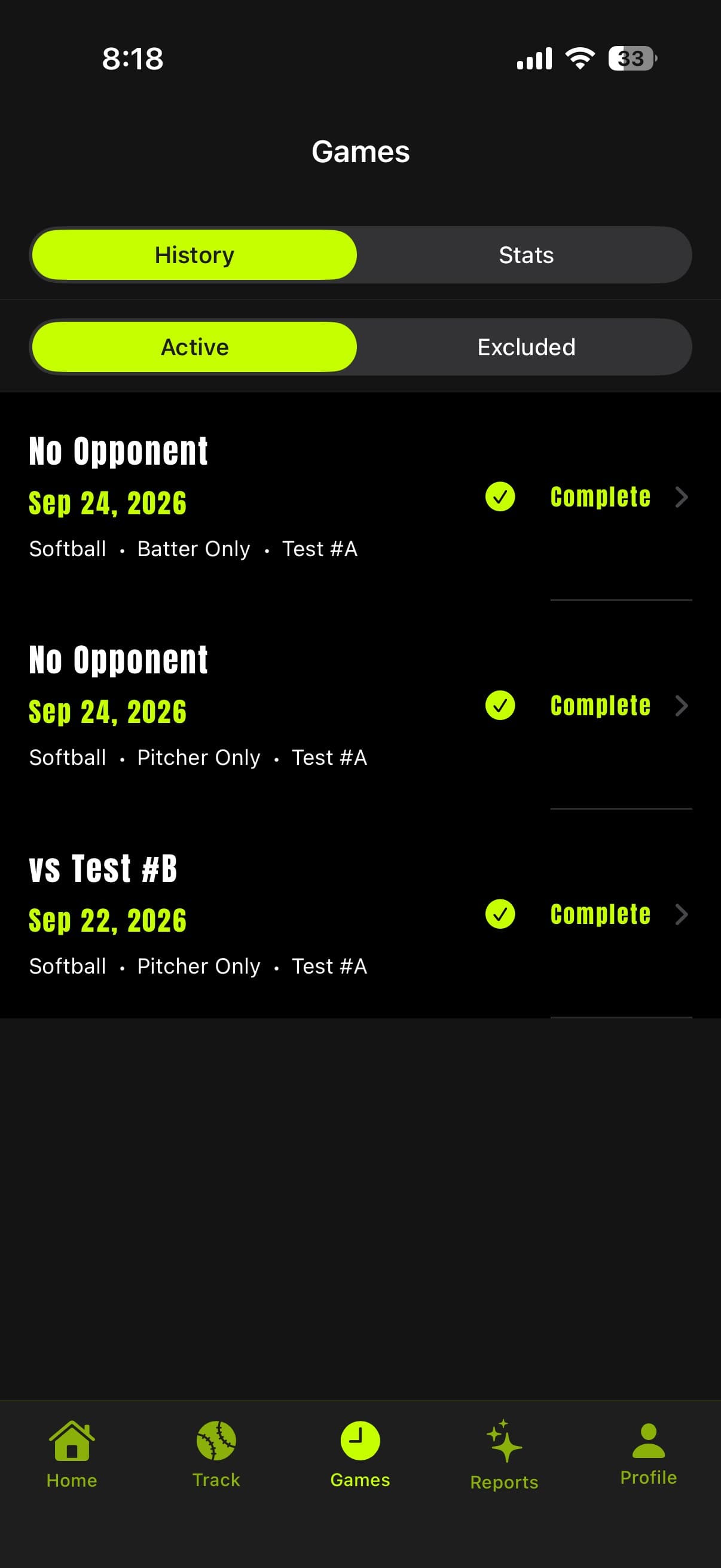
History / Stats
Toggle between a list of individual games and your aggregated season stats.
Active / Excluded
Switch to Excluded to see any games you’ve removed from your stats, and bring one back anytime.
Game Row
Tap any game to open its full detail — At-Bat Clips, pitching data, and more.
Tap a game from the list to open its full detail — shown here across a scroll, numbers continue in order.
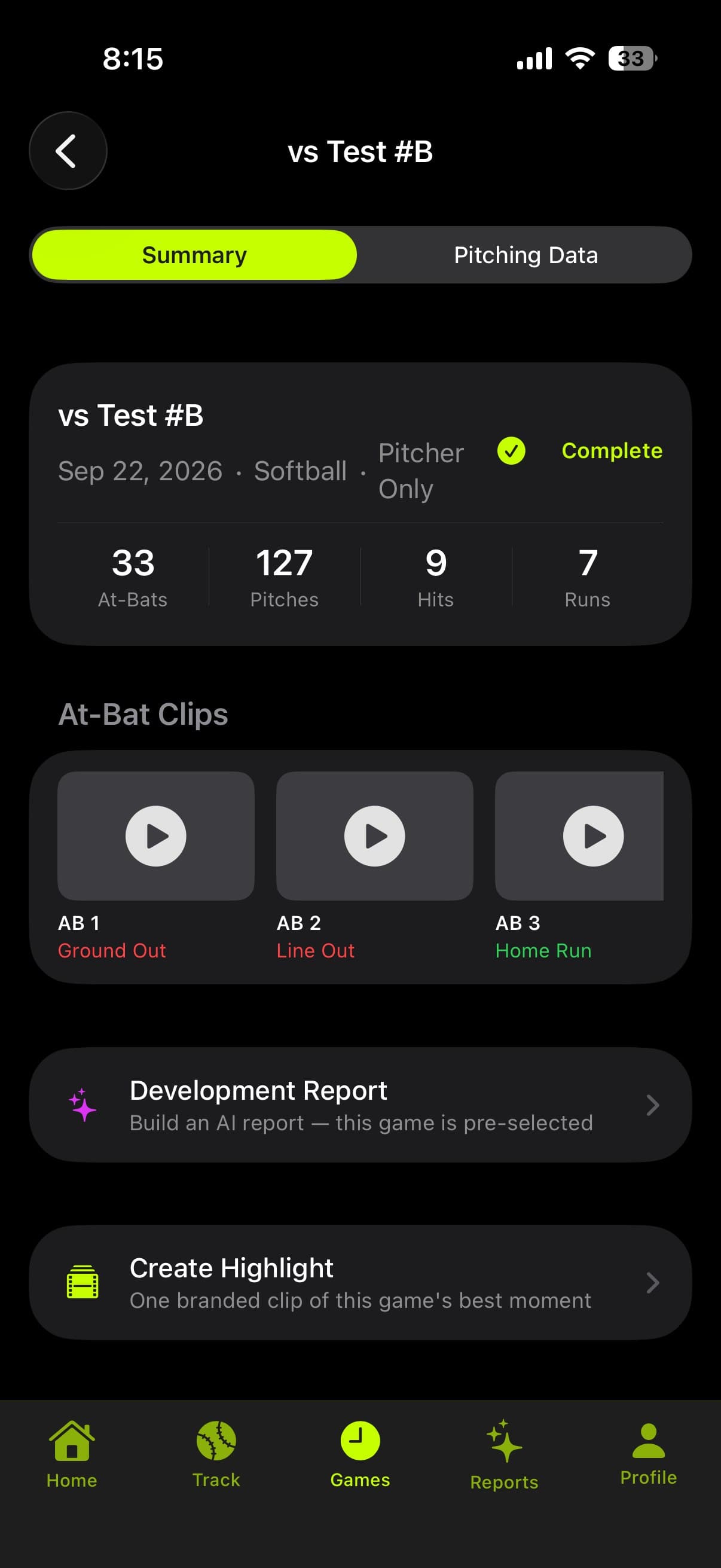
Summary / Pitching Data
Toggle between this game’s batting/pitching line and the full pitch-by-pitch data.
Game Info
The final line for this game: at-bats, pitches, hits, runs, and whether tracking was completed.
At-Bat Clips
Tap any clip to watch that at-bat’s video, if you recorded one.
Development Report
Build an AI report with this game pre-selected.
Create Highlight
Generate one branded, shareable video of this game’s best moment.
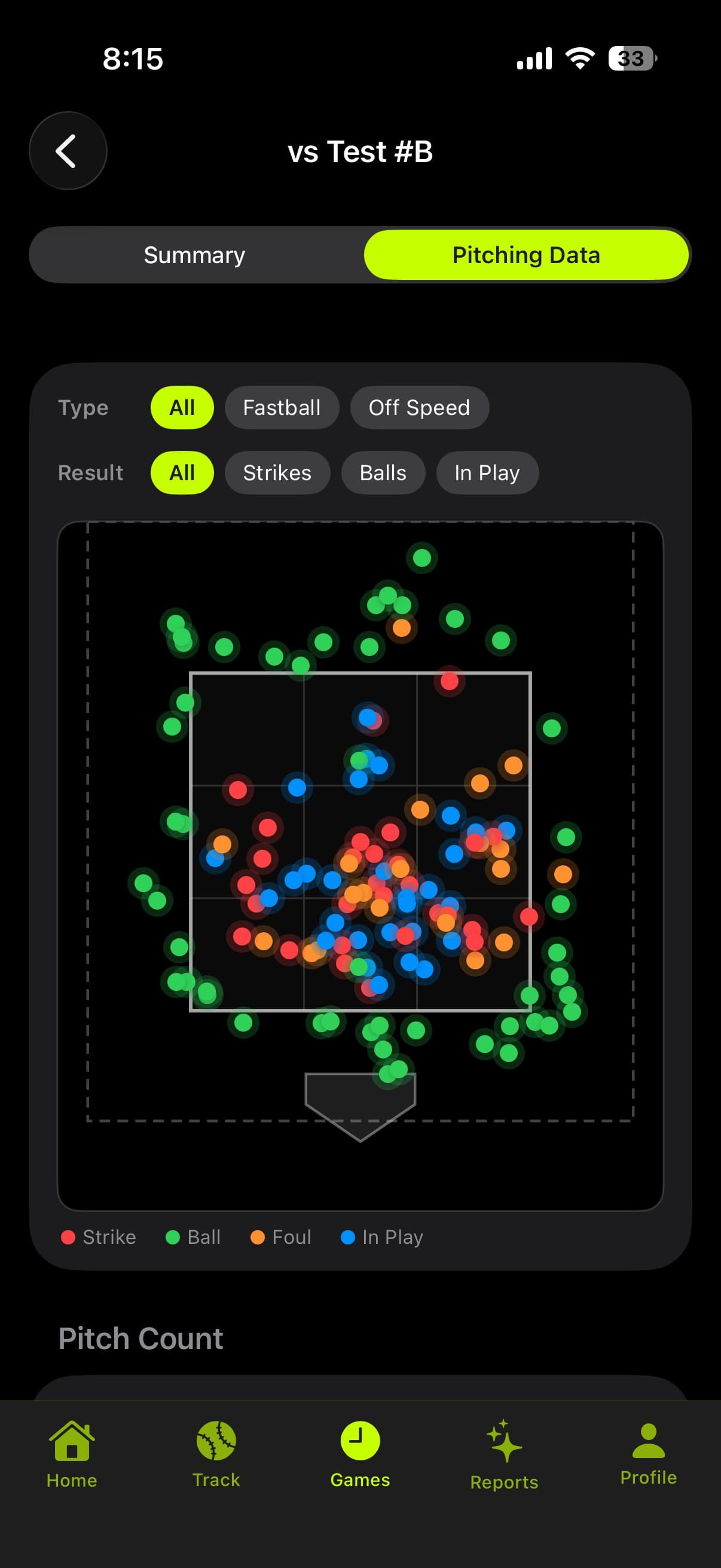
Type / Result Filters
Narrow the pitch-location chart below to just fastballs, off-speed, or a specific result.
Pitch Location
Every pitch thrown this game, plotted in the zone and color-coded by what happened.
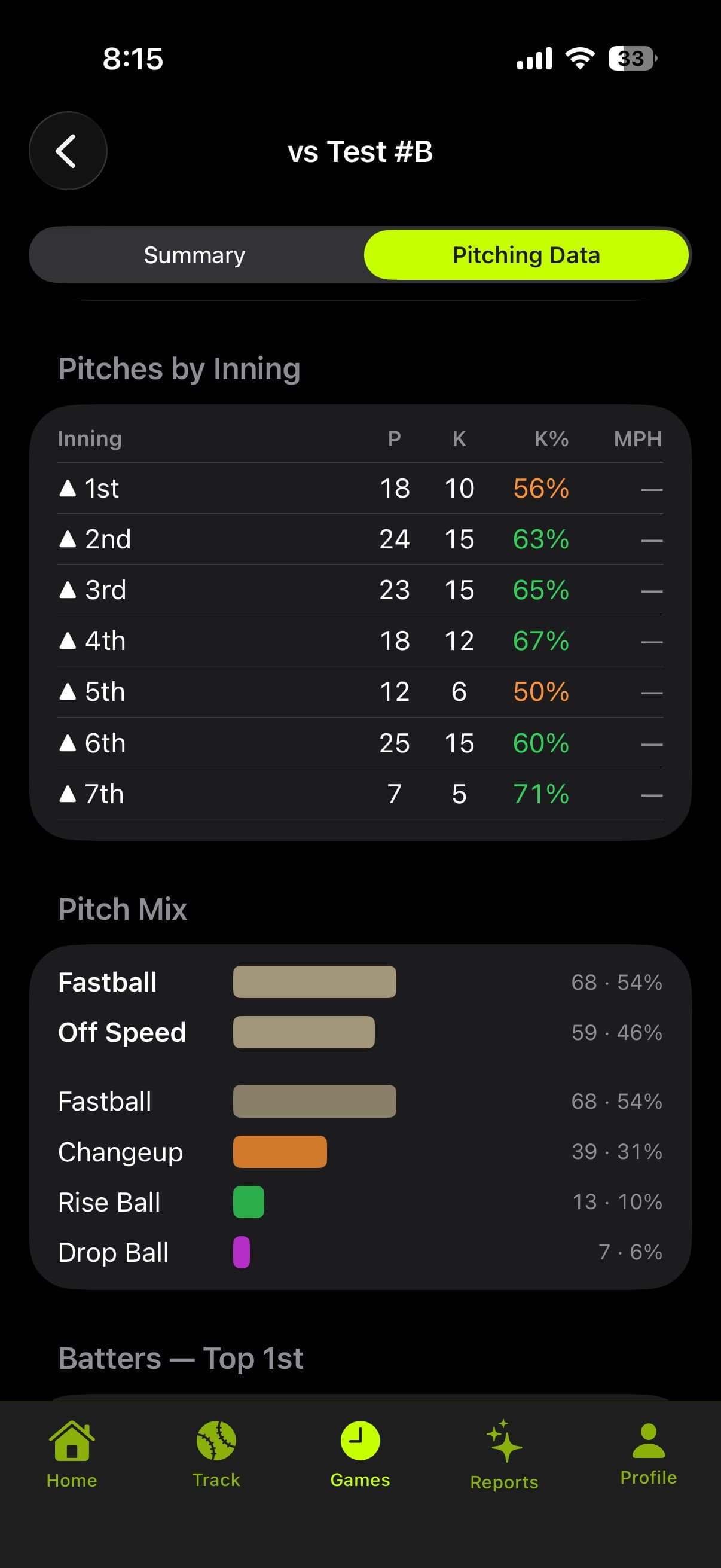
Pitches by Inning
Pitch count and strikeout rate, inning by inning.
Pitch Mix
How often each pitch type was thrown.
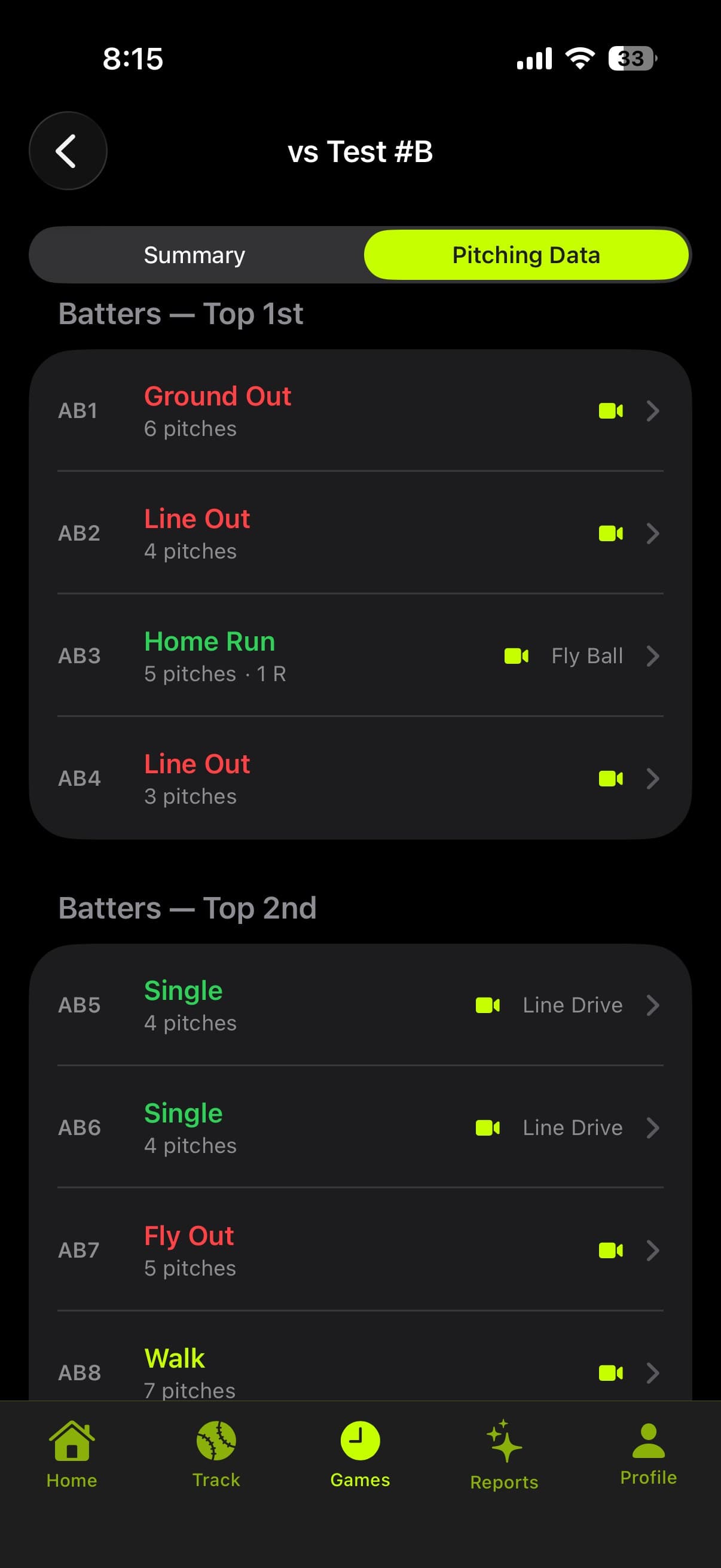
Batters Faced
Every at-bat this game, grouped by inning. Tap one to open its full pitch-by-pitch log and video.
Tap any at-bat under Batters Faced to open this.
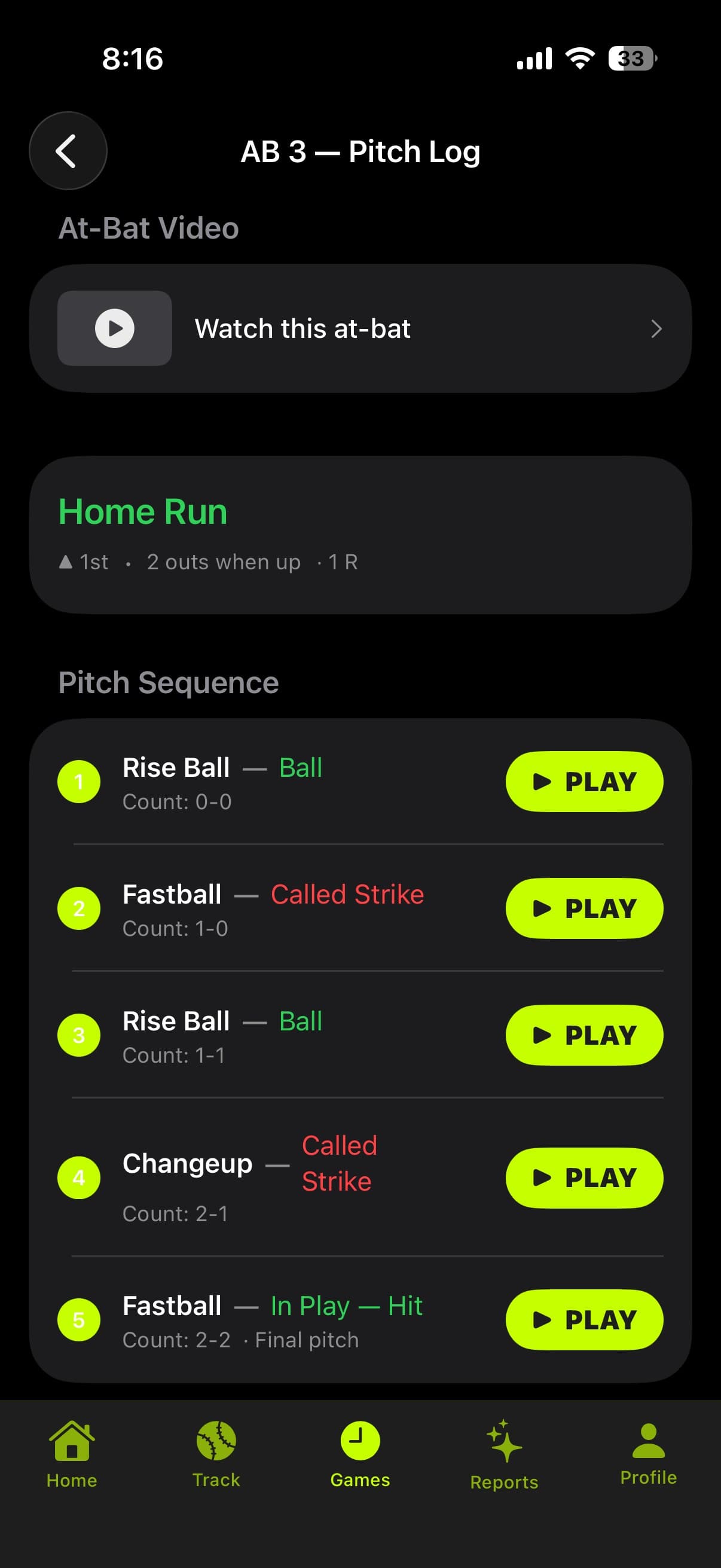
Watch This At-Bat
Play the full video for this at-bat, if you recorded one.
Outcome
What happened, plus the game situation when it did.
Pitch Sequence
Every pitch of this at-bat. Tap Play on any one to jump straight to that moment in the video.
Excluding or Restoring a Game
Swipe a game in the list to exclude it from your stats — useful for bad data or a scrimmage you don't want counted. It moves to the Excluded tab and can be restored with the same swipe anytime.
Creating an Auto-Highlight
From a completed game's detail screen, tap "Create Highlight." Prospekt scores every at-bat and pitching outing in that game and builds one branded, shareable 9:16 video of the single best moment, with your real stat line baked right into the card.
Reports Tab
Report Recipes
Five one-tap starting points: Last Game, Last Week (Monday through today), Last Month (trailing 30 days), Last Opponent, and Create Custom.
Each one opens a checklist of games, already checked for you but deselectable — you always choose exactly which games go into a report. Prospekt never builds a report from your whole history by default.
Creating a Custom Report
Create Custom starts with nothing checked, plus real filters — opponent, competition level, date range — to narrow the game list down before you pick exactly which ones to include.
Reading & Sharing a Report
Once games are confirmed, "Build Report" has Prospekt's AI read every pitch and at-bat from those games — plus any imported stats, showcase notes, or box score attached to those specific games — and write a real narrative development report, not a stat dump.
From the finished report: the share icon opens the normal share sheet, or export it as a branded PDF. "Close" (top left) leaves the screen without losing anything — every report you generate is saved either way.
Viewing Past Reports
Scroll down on the Reports tab to "Previous Reports" to reopen anything you've already generated.
Free Reports, Subscriptions & the Report Bundle
- Every account gets 2 free reports.
- Player Pro (annual) — unlimited reports plus video.
- Player Pro (monthly) — up to 25 reports/month plus video.
- 10-Report Bundle — a one-time purchase for 10 more reports. Reports only — it does not unlock video.
Profile Tab
Your Player Card
The top of Profile always shows the active player's name, sport, and quick stats.
My Players
Add a new managed player, switch which one is active, or check "Recently Removed" — a player you remove is kept for 30 days and can be restored before it's gone for good.
Editing a Player's Profile
Sport
Can only be changed before any game has been tracked for this player — once a game exists, create a second profile instead of switching sports on this one, so one player's stats never mix two sports.
Teams & jersey numbers
Add or edit a team under this player, with its own jersey number — this is also the reliable place to set a jersey number, not just the in-game quick-edit.
Account Email
For the signed-in account holder's own profile only — change your actual login email here, with a verification code to confirm the new address.
Connecting With Someone
Your Invite Code lets another Prospekt user follow your stats, or — only if you approve it — track games for you. They enter your code and ask; you choose whether to approve them as a Follower (read-only) or a Tracker (can log real games on your behalf), independent of which one they asked for.
Revoke anyone's access anytime from "My Followers."
Pitch Limit
Set a per-outing pitch cap — this feeds the rest-day countdown on Home's Arm Care card. Reachable from here or directly from the Arm Care card itself.
Account Settings
Sign out, or permanently delete your account — and everything tied to it — from the bottom of Profile.
Appendix
Glossary of Stats & Abbreviations
- AB
- At-bat — a plate appearance that counts toward batting average (excludes walks, hit-by-pitch, sacrifices).
- PA
- Plate appearance — every trip to the plate, including walks and sacrifices.
- OBP
- On-base percentage — how often a batter reaches base by any means.
- SLG
- Slugging percentage — total bases per at-bat.
- K%
- Strikeout rate.
- BB%
- Walk rate.
- F-Strike%
- First-pitch strike percentage — a pitcher's own stat.
- DTS
- Dropped Third Strike — a real strikeout by rule, even though the batter reaches base safely. Counted as a strikeout, but not as an out charged to the batter.
- SR
- Side Retired — a defensive out on the bases (not the batter's own result) that ends the at-bat early. Doesn't count as an at-bat or a plate appearance.
- IBB
- Intentional walk.
Troubleshooting
My video isn't showing up
Video uploads in the background and can take a few extra seconds on the very first clip of a session while the connection warms up. Make sure you have a signal and give it a moment.
I can't start a game
Prospekt needs a live connection to start tracking — fully offline tracking from a dead zone isn't supported yet.
Why can't I change my player's sport?
It locks once any game has been tracked for them, so one profile's stats can never end up mixing two sports. Create a second player profile instead if they play both.
My Custom pitch list isn't showing up while batting
Custom only ever applies while this player is pitching — nobody can know the opposing pitcher's real arsenal, so batting at-bats always fall back to the Detailed pitch list instead.
A game popped up asking to Resume or Discard
That means a previous session got interrupted (the app was closed, a call came in, etc.) before you tapped End Game. Resume picks up exactly where you left off, count and all; Discard marks that game complete without finishing it.
FAQ
Is Prospekt free?
Yes. Live pitch-by-pitch tracking, stats, Arm Care, and your first 2 AI reports are free with no subscription. Video and reports beyond the free allowance need a Player Pro subscription or a one-time Report Bundle.
Do I need a radar gun to use Prospekt?
No. Without one, a batter session shows an estimated opposing-velocity range for context instead of a real number. If someone has a radar gun running, turn on "Radar Gun Available" at Game Setup to log real pitch velocities.
Can I track more than one of my kids?
Yes. Add each one as a managed player from Profile → Add a Player — every player gets their own stats, teams, and reports under the one account.
What happens to video if my subscription lapses?
Video sticks around for 6 months after a subscription lapses — you'll get warning emails along the way — then it's removed to control storage cost. Your stats, at-bats, and pitch data are never affected; only the video itself.
Can someone else track games for my kid?
Yes. Give them your Invite Code and approve their request as a Tracker (not just a Follower) — they can then log real games for your player, but only the sessions they themselves track, never your existing history.
Is my child's data private?
Yes. Nothing is public by default. A shared stats link requires you to approve each individual viewer's request, and an in-app follow/tracker connection requires your explicit approval too. There are no ads and we don't sell data.
What's the difference between a Follower and a Tracker?
A Follower can see the stats — read-only. A Tracker can also log real games on the player's behalf. You decide which one to grant, independent of which one the person asked for, and you can revoke either anytime.
Can I use this for softball?
Yes, Prospekt supports both baseball and softball. Set it when you create the player's profile — note that Arm Care's rest-day guidance is baseball-only for now, since there's no single trusted pitch-count standard for softball yet.
Does the app work without internet?
Not for live tracking — Prospekt needs a connection to start and save a game. If you've already watched a video clip once, it stays cached on your phone and can replay without a connection later.
How do I delete my account?
Profile → scroll to the bottom → Delete Account. This permanently removes your account and everything tied to it, including every managed player, game, and video — there's no undo.
Does the 10-Report Bundle include video?
No — a report is a one-time write-up, but a season of video is ongoing storage cost, so the bundle covers reports only. An active Player Pro subscription is what unlocks video.
Why does my game log show a plate appearance that isn't a real at-bat?
A walk, hit-by-pitch, sacrifice, or a Side Retired (SR) play all count as a plate appearance but not an official at-bat — that's standard scoring, not a bug, and your AVG/OBP already account for it correctly.
Still stuck, or something not working the way you’d expect? Reach us anytime at support@prospektsports.com.